
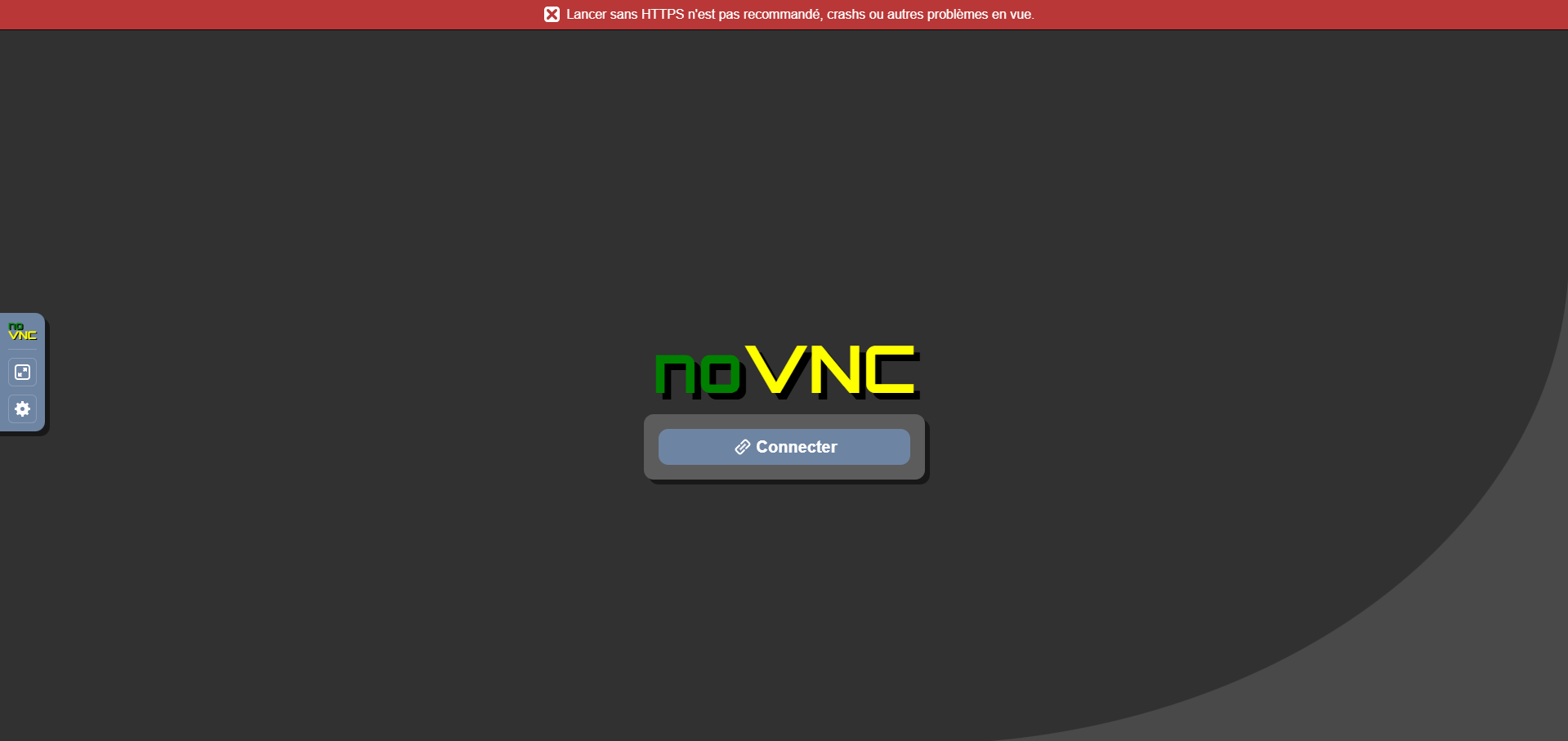
 NoVnc landing page, clic "connect"

How to install
How to Install (Docker) — Spotycast
This page covers the Docker deployment, then shows how to manually run the installer binaries shipped inside the container to stream Spotify to your players via Liquidsoap → Icecast.
Running into discovery issues? Check FAQ.
1) Deploy the Docker Compose stack
Important: deploying the Docker Compose stack does not install Free or Premium. It only deploys the container (GUI + required environment). You will enable Free/Premium manually in step 2 or 3.
Prerequisites
- An I386/AMD64 Linux host like a NAS, server or proxmox instance with Docker and the Docker Compose plugin.
- Portainer Stacks (recommended) or a Docker Manager UI capable of deploying a Compose file.
- Network access to the host for noVNC/VNC (optional) and Icecast (audio endpoint).
Recommended ports (example)
Keep ports consistent with your current setup. Below is a common baseline (adapt as needed).
# SSH into container (optional)
2222:22

# VNC / noVNC (optional)
5901:5901
6080:6080

# Icecast HTTP
28000:28000
Docker Compose file (template)
Paste in Portainer → Stacks → Add stack → Web editor, or your Docker Manager “Compose/Stack” editor.
services:
  spotycast:
    image: chourmovs/debian13-vnc-novnc-ssh:latest
    container_name: spotycast
    restart: unless-stopped

    # mandatory for free version only
    network_mode: host

    privileged: true
    shm_size: "1gb"

    ports:
      - "2222:22"
      - "5901:5901"
      - "6080:6080"
      - "28000:28000"

    environment:
      # Session interactive / desktop
      USERNAME: "radio"
      USER_UID: "1000"
      USER_GID: "1000"

      # Access
      SSH_PASSWORD: "hackme"
      VNC_PASSWORD: "hackme"
      ROOT_PASSWORD: "hackme"
      ALLOW_ROOT_SSH: "yes"

      VNC_GEOMETRY: "1600x900"
      VNC_DEPTH: "24"

      ICECAST_PORT: "28000"

    volumes:
      - /etc/localtime:/etc/localtime:ro
      - ./spotycast-data:/data
Portainer deployment
Stacks → Add stack → Name spotycast → paste YAML → Deploy.
CLI deployment (optional)
Use this if you prefer a terminal-only workflow.
mkdir -p spotycast && cd spotycast
nano docker-compose.yml
docker compose up -d
docker compose ps
Open the container GUI
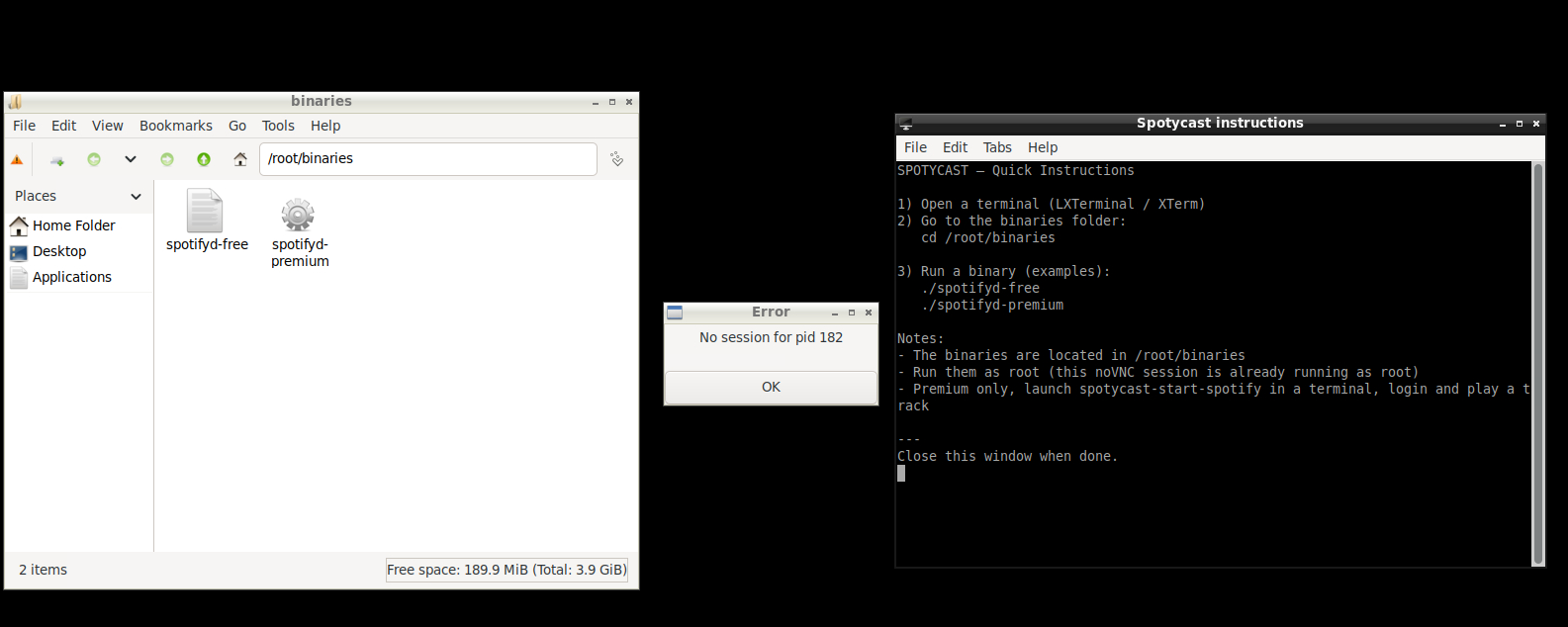
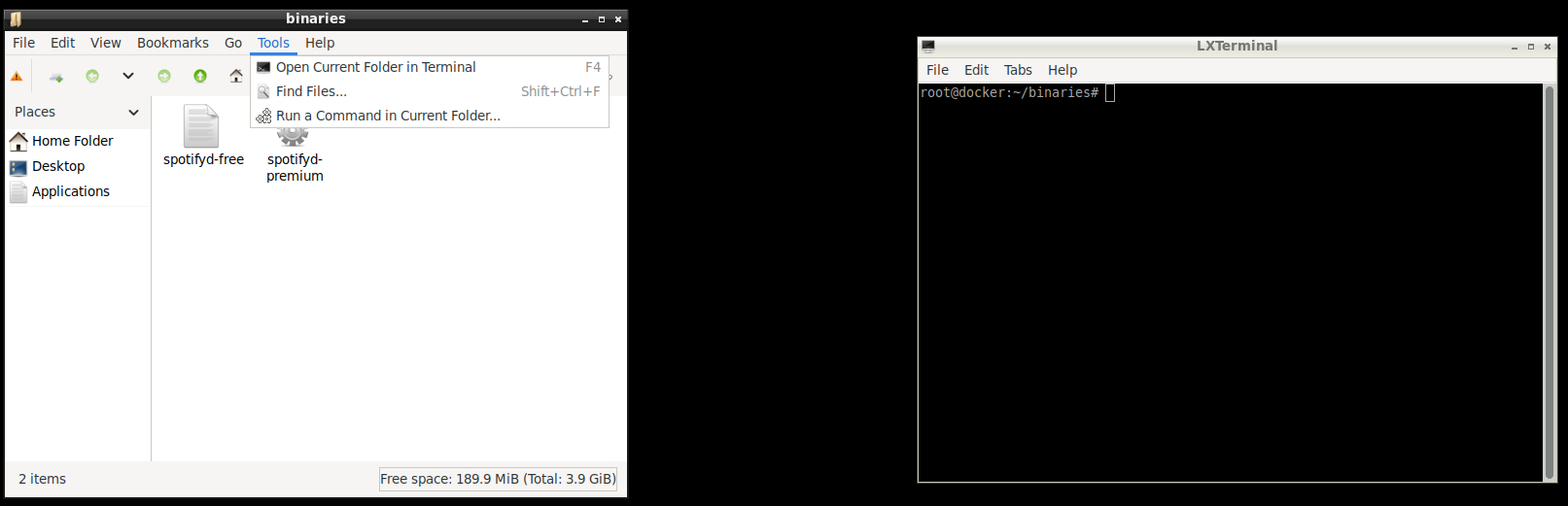
noVNC: http://<HOST>:6080/vnc.html, then open LXTerminal.
2) Install / Enable the Free version
Current behavior: the Free installer binary is already present in /root/binaries inside the container and is executable. You just run it manually from LXTerminal.
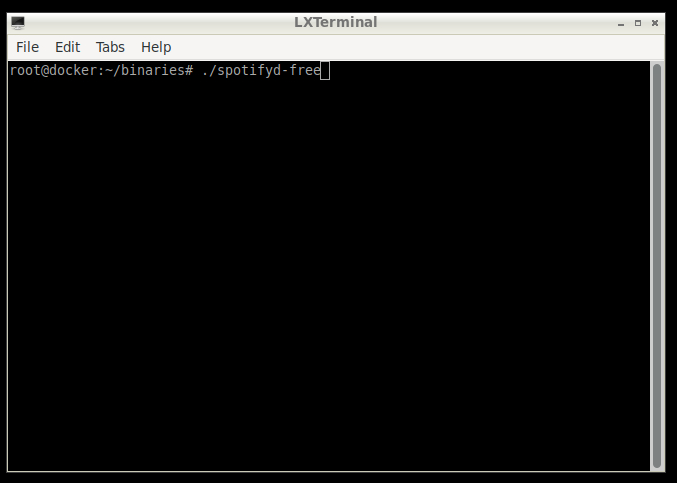
Run the Free binary
cd /root/binaries
./spotifyd-free
What the Free installer does (high level)
- Configures the audio pipeline (Spotify playback → PulseAudio → Liquidsoap → Icecast).
- Starts required services inside the container.
- Exposes Icecast mountpoints once streaming is active.
Quick validation
- Open Icecast: http://<HOST>:28000
- Verify mountpoints are visible and playback is stable.
3) Install / Enable the Premium version
Upgrade note: if you previously enabled the Free version, disable/uninstall it first to avoid conflicts (duplicate services, overlapping configs, or port collisions).
Run the Premium binary
cd /root/binaries
./spotifyd-premium
Activation
- When prompted, paste your Premium installation key.
- The installer validates the key and enables Premium features.
- For the Premium workflow, you will launch Spotify Desktop by running:
export DISPLAY=:1
spotycast-start-spotify- Log into Spotify Desktop, then select the desired quality (including Lossless where available) in Spotify settings.
Diagnostics
Useful logs inside the container (copy/paste in LXTerminal):
tail -n 200 /var/log/spotify-roon-bridge/liquidsoap.stderr.log || true
tail -n 200 /var/log/spotify-roon-bridge/icecast2.stderr.log || true
tail -n 200 /var/log/spotify-roon-bridge/pulseaudio.stderr.log || true